


In various blog posts, we’ve explored what graphs are and how they work from both theoretical and practical perspectives. In the post Graph databases: Analysis and example, we already discussed how this technology can model relationships that would be impossible to capture using traditional SQL.
When we talk about graph databases, the options are usually limited to Neo4J. However, BigQuery recently added graph processing support in Preview, marking a significant milestone in the use of this technology.
In this article, we’ll explore this new feature and see how it works through a practical example.
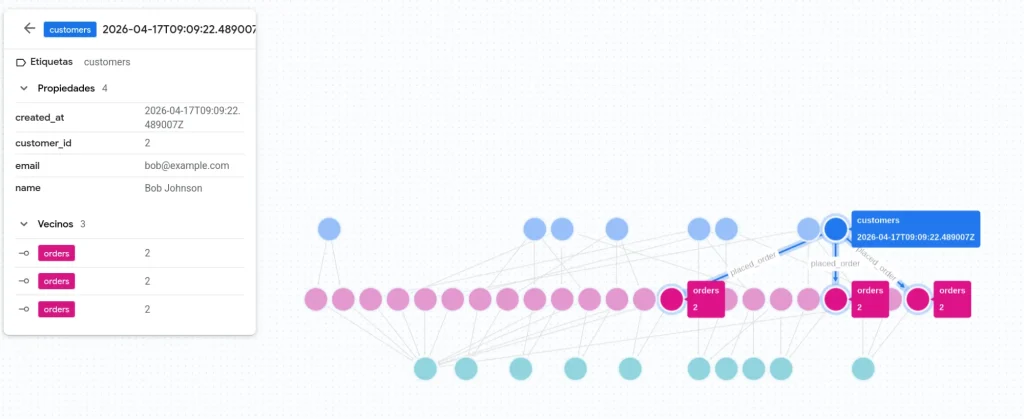
How Graph Visualisation Works in BigQuery
First, we’ll generate some sample data to demonstrate how this tool works. To do this, we’ll use the following query in BigQuery:
CREATE OR REPLACE TABLE `graph_testing.customers` (
 customer_id INT64 NOT NULL,
 name STRING,
 email STRING,
 created_at TIMESTAMP,
 PRIMARY KEY (customer_id) NOT ENFORCED
);

CREATE OR REPLACE TABLE `graph_testing.items` (
 item_id INT64 NOT NULL,
 product_name STRING,
 unit_price FLOAT64,
 PRIMARY KEY (item_id) NOT ENFORCED
);

CREATE OR REPLACE TABLE `graph_testing.orders` (
 order_id INT64 NOT NULL,
 customer_id INT64,
 order_date TIMESTAMP,
 total_amount FLOAT64,
  PRIMARY KEY (order_id) NOT ENFORCED,
  FOREIGN KEY (customer_id)
   REFERENCES `graph_testing.customers` (customer_id) NOT ENFORCED
);

CREATE OR REPLACE TABLE `graph_testing.order_items` (
 order_item_id INT64 NOT NULL,
 order_id INT64,
 item_id INT64,
 quantity INT64,
 price FLOAT64,
  PRIMARY KEY (order_item_id) NOT ENFORCED,
  FOREIGN KEY (order_id)
   REFERENCES `graph_testing.orders` (order_id) NOT ENFORCED,
  FOREIGN KEY (item_id)
   REFERENCES `graph_testing.items` (item_id) NOT ENFORCED
);

INSERT INTO `graph_testing.customers` VALUES
(1,'Alice Smith','alice@example.com',CURRENT_TIMESTAMP()),
(2,'Bob Johnson','bob@example.com',CURRENT_TIMESTAMP()),
(3,'Charlie Brown','charlie@example.com',CURRENT_TIMESTAMP()),
(4,'Diana Prince','diana@example.com',CURRENT_TIMESTAMP()),
(5,'Ethan Hunt','ethan@example.com',CURRENT_TIMESTAMP()),
(6,'Fiona Gallagher','fiona@example.com',CURRENT_TIMESTAMP()),
(7,'George Martin','george@example.com',CURRENT_TIMESTAMP()),
(8,'Hannah Baker','hannah@example.com',CURRENT_TIMESTAMP()),
(9,'Ian Malcolm','ian@example.com',CURRENT_TIMESTAMP()),
(10,'Julia Roberts','julia@example.com',CURRENT_TIMESTAMP());

INSERT INTO `graph_testing.items` VALUES
(1,'Laptop',1200),
(2,'Mouse',25),
(3,'Keyboard',75),
(4,'Monitor',200),
(5,'Desk',300),
(6,'Chair',150),
(7,'Headphones',90),
(8,'Printer',120),
(9,'Smartphone',800),
(10,'Tablet',400);

INSERT INTO `graph_testing.orders` VALUES
(101,1,CURRENT_TIMESTAMP(),120),(102,1,CURRENT_TIMESTAMP(),80),(103,1,CURRENT_TIMESTAMP(),45),
(104,2,CURRENT_TIMESTAMP(),75),(105,2,CURRENT_TIMESTAMP(),150),(106,2,CURRENT_TIMESTAMP(),85),
(107,3,CURRENT_TIMESTAMP(),200),(108,3,CURRENT_TIMESTAMP(),50),(109,3,CURRENT_TIMESTAMP(),60),
(110,4,CURRENT_TIMESTAMP(),50),(111,4,CURRENT_TIMESTAMP(),90),(112,4,CURRENT_TIMESTAMP(),140),
(113,5,CURRENT_TIMESTAMP(),300),(114,5,CURRENT_TIMESTAMP(),40),(115,5,CURRENT_TIMESTAMP(),210),
(116,6,CURRENT_TIMESTAMP(),180),(117,6,CURRENT_TIMESTAMP(),60),(118,6,CURRENT_TIMESTAMP(),35),
(119,7,CURRENT_TIMESTAMP(),90),(120,7,CURRENT_TIMESTAMP(),110),(121,7,CURRENT_TIMESTAMP(),400),
(122,8,CURRENT_TIMESTAMP(),60),(123,8,CURRENT_TIMESTAMP(),130),(124,8,CURRENT_TIMESTAMP(),55),
(125,9,CURRENT_TIMESTAMP(),500),(126,9,CURRENT_TIMESTAMP(),75),(127,9,CURRENT_TIMESTAMP(),75),
(128,10,CURRENT_TIMESTAMP(),220),(129,10,CURRENT_TIMESTAMP(),95),(130,10,CURRENT_TIMESTAMP(),180);

INSERT INTO `graph_testing.order_items` VALUES
(1001,101,1,1,1200),(1002,101,2,1,25),
(1003,102,2,2,25),
(1004,103,3,1,75),

(1005,104,3,1,75),(1006,104,2,1,25),
(1007,105,4,1,200),(1008,105,2,2,25),
(1009,106,7,1,90),

(1010,107,5,1,300),(1011,107,6,1,150),
(1012,108,2,1,25),
(1013,109,10,1,400),

(1014,110,2,2,25),
(1015,111,7,1,90),(1016,111,3,1,75),
(1017,112,4,1,200),

(1018,113,6,2,150),
(1019,114,2,1,25),
(1020,115,5,1,300),(1021,115,2,1,25),

(1022,116,10,1,400),
(1023,117,2,3,25),
(1024,118,3,1,75),

(1025,119,8,1,120),
(1026,120,4,1,200),(1027,120,2,1,25),
(1028,121,1,1,1200),

(1029,122,2,2,25),
(1030,123,7,1,90),
(1031,124,3,1,75),

(1032,125,1,1,1200),(1033,125,2,1,25),
(1034,126,8,1,120),
(1035,127,9,1,800),

(1036,128,9,1,800),(1037,128,2,1,25),
(1038,129,2,2,25),
(1039,130,10,1,400),(1040,130,7,1,90);

CREATE OR REPLACE TABLE `graph_testing.placed_orders` (
 source_customer_id INT64,
 destination_order_id INT64,
 order_date TIMESTAMP,
 total_amount FLOAT64,
 PRIMARY KEY (destination_order_id) NOT ENFORCE
) AS
SELECT
 customer_id AS source_customer_id,
 order_id AS destination_order_id,
 order_date,
 total_amount
FROM `graph_testing.orders`;
Note that tables must have a primary key defined using the PRIMARY_KEY clause. Otherwise, they cannot be used to define the graph.
In this way, we will create a total of five tables. Three of them represent nodes in the graph: Customers, Orders, and Items. The other two are bridge tables that link elements: Order Items links Orders with Items, and Placed Orders links Customers with Orders.
If we look at the structure of this graph, it is the same as the example graph shown in the first image of the post, but enriched with more data.
How to create a property graph in BigQuery
Creating a property graph requires defining the graph, its nodes, and its edges. Each of these elements is represented by a table in BigQuery.
To define our graph, we specify the nodes Customers, Orders, and Items, and the edges Placed Orders, which links Customers to Orders, and Contains Items, which links Orders to Items.
Additionally, for each node table, we must specify an edge table containing the ID of each node it links to. If the edge table does not exist, there is no connection between the nodes.
CREATE OR REPLACE PROPERTY GRAPH `graph_testing.commerce` --Nombre grafo
	--Tablas nodo
NODE TABLES (
 `graph_testing.customers` LABEL customers,
 `graph_testing.orders` LABEL orders,
 `graph_testing.items` LABEL items
)
--Tablas arista
EDGE TABLES
(`graph_testing.placed_orders`
SOURCE KEY (source_customer_id) REFERENCES `graph_testing.customers` (customer_id)
DESTINATION KEY (destination_order_id) REFERENCES `graph_testing.orders` (order_id)
   LABEL placed_order,
 `graph_testing.order_items`
SOURCE KEY (order_id) REFERENCES `graph_testing.orders` (order_id)
DESTINATION KEY (order_item_id) REFERENCES `graph_testing.items`(item_id)
   LABEL contains_items
);
Graph Query Language
The language used for queries is Graph Query Language (GQL). It is very similar to Cypher (which we used in the article mentioned above), so we won’t go into detail about how it works to define matches.
SELECT DISTINCT customer_id, name
FROM GRAPH_TABLE(
 `reportingonline-dev.graph_testing.commerce`
 MATCH (c:customers)-[:placed_order]-(o:orders)
       -[:contains_items]-(i:items)
 COLUMNS (c.customer_id, c.name, o.order_id, i.item_id)
)
GROUP BY customer_id, name, order_id
HAVING COUNT(*)>1
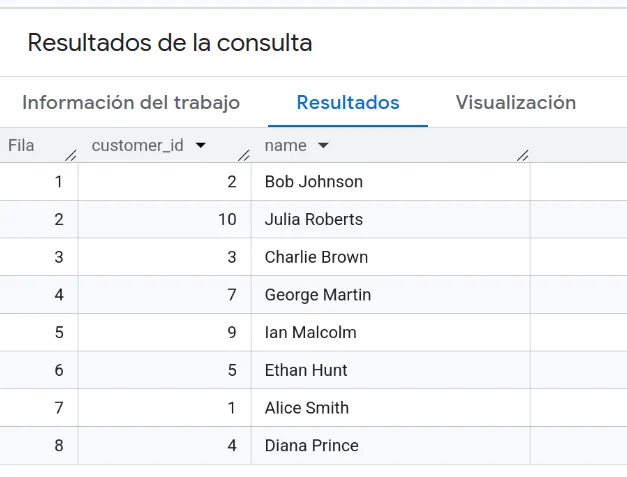
In this example query, all Customer who have one or more orders containing more than one item are retrieved. If we run this query, we will get:
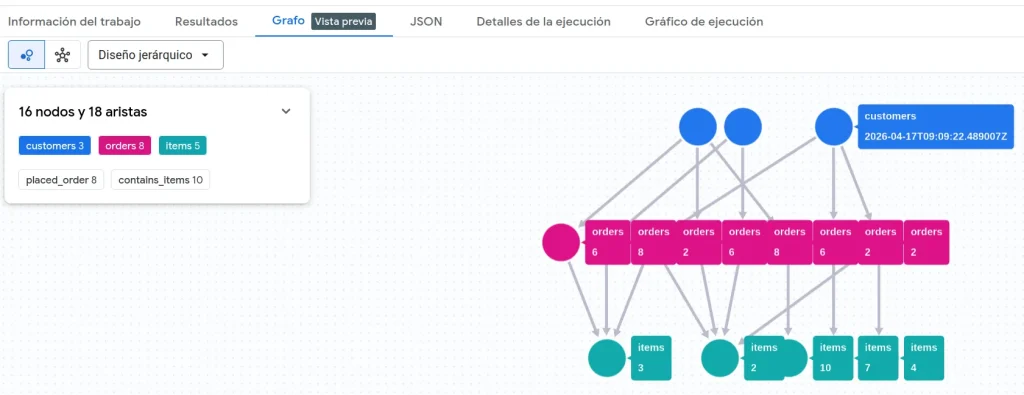
In addition, if you want to view the results of a query, BigQuery provides an automatic visualiser.
GRAPH `reportingonline-dev.graph_testing.commerce`
 MATCH p =(c1:customers)-[:placed_order]-(o1:orders)
       -[:contains_items]-(i:items)
RETURN
 TO_JSON(p) AS path LIMIT 10;
If we run this code, we will get the following result:
Conclusion
With the new support for property graphs that BigQuery has developed, we will be able to expand the types of analyses we can perform on data within this platform. This will allow us to gain more insights from the data with minimal friction.
If you found this article interesting, visit the Data Engineering category of our blog to see posts similar to this one and share it with all your contacts. Don’t forget to mention us to let us know what you think @Damavisstudio, see you soon!
